Connect AI models with API keys
Connect OpenAI, Claude, Gemini, OpenRouter, Grok, or DeepSeek to Lerix with one shared setup and a compact provider and model comparison.
Every supported provider uses the same Lerix connection process. Choose a provider below, create its API key, then use the shared setup. Provider-specific facts are kept in one comparison rather than repeated as separate guides.
Choose a provider
Lerix supports API-key connections for OpenAI, Claude, Gemini, OpenRouter, Grok, and DeepSeek. Each link opens that provider's details in the comparison.
The shared API-key setup process
- Create the key in the provider's own console. API keys come from the AI service, not from Lerix.
- Open Lerix and use Add API key, or open Settings > Connections.
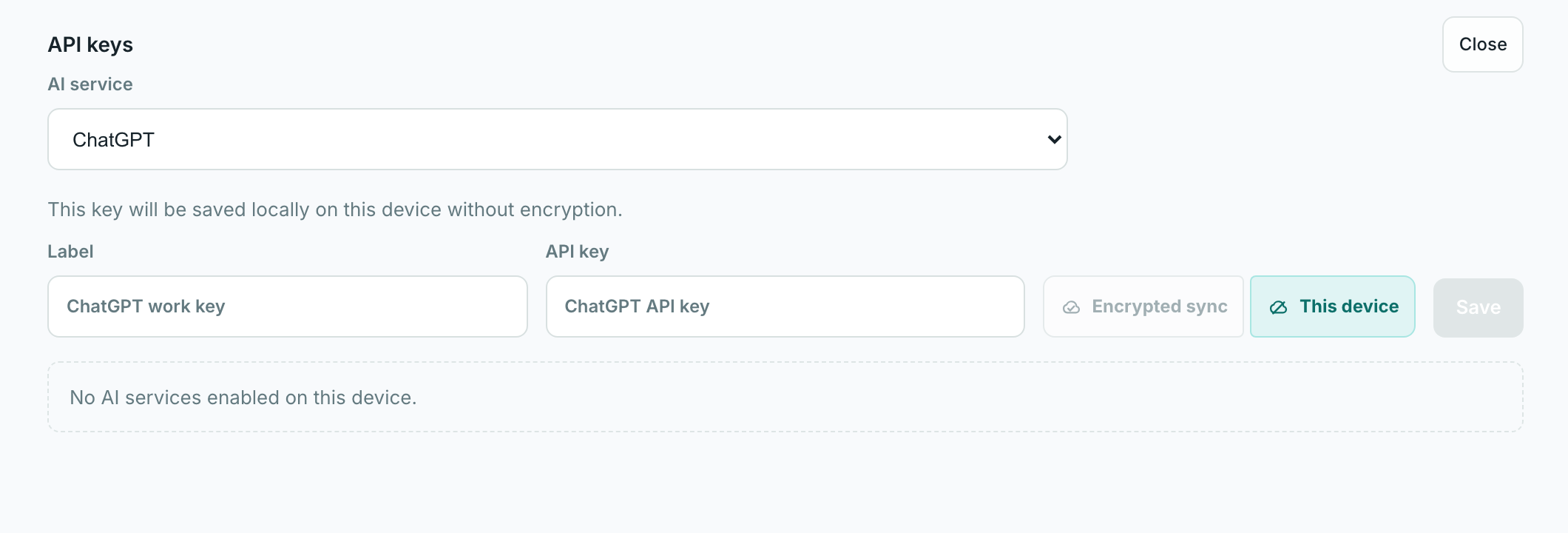
- Select the AI service: ChatGPT, Claude, Google, Grok, DeepSeek, or OpenRouter.
- Add a non-secret label, paste the key only into the API-key field, and choose Encrypted sync or This device.
- Save the key, keep the models you want enabled, and send a small test message.
Compare provider keys and models
Open only the provider you need. Model names and API IDs come from Lerix's production catalog; a provider can still limit access for an individual account, key, project, workspace, region, tier, or billing state.
OpenAI ChatGPT in Lerix 11 catalog models
OpenAI API key
Use an OpenAI Platform API key—not a ChatGPT subscription—to connect ChatGPT models to Lerix.
Get the key and API access
Create or manage an OpenAI Platform key in the intended organization and project.
ChatGPT plans and API billing are separate. Project access, budget, usage tier, region, or account state can still limit a listed model. Codex auth in the Mac app is a separate path.
Models and API IDs in Lerix
- GPT-6 Astra
gpt-6-astra - GPT-5.6 Sol
gpt-5.6-sol - GPT-5.6 Terra
gpt-5.6-terra - GPT-5.6 Luna
gpt-5.6-luna - GPT-5.5
gpt-5.5 - GPT-5.5 Pro
gpt-5.5-pro - GPT-5.4
gpt-5.4 - GPT-5.4 Mini
gpt-5.4-mini - GPT-5.4 Nano
gpt-5.4-nano - GPT-5.2
gpt-5.2 - GPT-5.3 Codex
gpt-5.3-codex
The list is generated from Lerix's production catalog; it does not grant access that the OpenAI project lacks.
If this provider fails
For 401 errors, re-copy the active project key. For billing or usage-limit errors, check Platform billing and project limits. Back off on 429 responses, and select another listed model when the project does not expose one.
Open Lerix with ChatGPT selectedClaude Claude in Lerix 8 catalog models
Claude API key
Use an Anthropic Console API key. The Console workspace—not a consumer Claude plan—owns API access and billing.
Get the key and API access
Create or manage an Anthropic Console key in the correct organization or workspace.
Claude Pro and Max do not include API usage. The Console organization needs credit, and the workspace role and key must allow the requested model.
Models and API IDs in Lerix
- Claude Opus 5
claude-opus-5 - Claude Fable 5
claude-fable-5 - Claude Sonnet 5
claude-sonnet-5 - Claude Opus 4.8
claude-opus-4-8 - Claude Opus 4.7
claude-opus-4-7 - Claude Opus 4.6
claude-opus-4-6 - Claude Sonnet 4.6
claude-sonnet-4-6 - Claude Haiku 4.5
claude-haiku-4-5-20251001
Models and Intelligence choices come from Lerix's production catalog rather than a copy of Anthropic's full inventory.
If this provider fails
Re-copy or replace the key for 401 errors, check Console credit for 402, and verify workspace role and model access for 403. Back off on 429 or 529; 529 means provider overload.
Open Lerix with Claude selectedGemini Google in Lerix 8 catalog models
Gemini API key
Create a Gemini API key in Google AI Studio, associate it with the intended Google Cloud project, and select Google in Lerix.
Get the key and API access
Create or manage a Gemini key in Google AI Studio for the project that should own quota and billing.
Google One and consumer Gemini plans are separate from Gemini API billing. Availability, quota, tier, and billing follow the Cloud project associated with the key.
Models and API IDs in Lerix
- Gemini 3.6 Flash
gemini-3.6-flash - Gemini 3.5 Flash-Lite
gemini-3.5-flash-lite - Gemini 3.1 Pro
gemini-3.1-pro-preview - Gemini 3.5 Flash
gemini-3.5-flash - Gemini 3.1 Flash-Lite
gemini-3.1-flash-lite - Gemini 2.5 Pro
gemini-2.5-pro - Gemini 2.5 Flash
gemini-2.5-flash - Gemini 2.5 Flash-Lite
gemini-2.5-flash-lite
Lerix can add compatible text-generation models exposed to the key. Unsupported embedding, audio, video, live, image-only, and specialized families stay hidden.
If this provider fails
For an invalid or blocked key, inspect its Cloud project and restrictions in AI Studio. Check project and per-model limits for 429, retry 503 with backoff, and expect unsupported model families to remain absent.
Open Lerix with Google selectedOpenRouter OpenRouter in Lerix Dynamic model catalog
OpenRouter API key
Create an OpenRouter API key—optionally with a credit limit—then use Lerix-supported models available through OpenRouter, including Auto Router.
Get the key and API access
Create or manage an OpenRouter key and set an optional key-level credit limit.
Requests use OpenRouter account credit and can also be bounded by the key's cap. Availability, privacy behavior, and transient errors may depend on the selected upstream provider.
Models available through OpenRouter
Lerix loads compatible streaming text-chat models available to your OpenRouter API key instead of limiting the connection to a fixed built-in list. Browse OpenRouter's current model catalog.
Auto Router is built in. Models outside Lerix's verified text-chat path stay hidden, and availability can change with OpenRouter or the key's access.
If this provider fails
Check that the key is active for authentication failures, then check both account credit and the key cap. Back off on 429. An absent model or upstream failure does not necessarily mean the key is invalid.
Open Lerix with OpenRouter selectedGrok / xAI Grok in Lerix 4 catalog models
Grok / xAI API key
To use Grok in Lerix, create an API key in the xAI Console and fund the xAI API account.
Get the key and API access
Create or manage an xAI API key in the team that should own the usage.
Consumer Grok or X subscription access is separate from xAI API credits and does not authenticate Lerix. Team permissions and current model-specific limits still apply.
Models and API IDs in Lerix
- Grok 4.6
grok-4.6 - Grok 4.5
grok-4.5 - Grok 4.3
grok-4.3 - Grok 4.20
grok-4.20-reasoning
Lerix uses catalog-listed Grok models. Image generation or web browsing appears only where a model has a separately verified API-key path.
If this provider fails
Re-copy or rotate the key for 401, check team and feature permissions for 403, and choose a catalog-listed model for 404 or model errors. Inspect team credit and current limits for 429 or credit failures.
Open Lerix with Grok selectedDeepSeek DeepSeek in Lerix 2 catalog models
DeepSeek API key
Use a DeepSeek Platform API key for normal streamed text chat in the Lerix web or desktop app.
Get the key and API access
Create or manage a DeepSeek Platform key, then fund it through the current Platform billing flow.
DeepSeek consumer web or app chat is separate from Platform API access and balance. Check current official pricing instead of relying on copied numeric prices.
Models and API IDs in Lerix
- DeepSeek V4 Pro
deepseek-v4-pro - DeepSeek V4 Flash
deepseek-v4-flash
Lerix uses catalog-listed text and Intelligence controls, renders final answer text, and does not retain hidden thinking. Image generation, native browsing, and arbitrary discovery are not supported on this path.
If this provider fails
Verify or rotate the Platform key for 401 and add API balance for 402. Back off on 429 or 5xx responses. Use a listed model and Lerix's shown Intelligence choices for model or thinking errors.
Open Lerix with DeepSeek selectedEach shortcut selects the service only. It never carries a key, saves a connection, or changes account access.
Fix a connection problem
- Authentication: re-copy the key without whitespace, confirm it is active, and replace it if it may have leaked.
- Billing or credit: check the provider's API account rather than a consumer subscription.
- Permission or missing model: verify the project, workspace, team, region, tier, and model access attached to the key.
- Rate limit or provider outage: reduce concurrency and retry with backoff; rotating a valid key will not fix provider overload.
Edit which models appear
Saved keys show a redacted hint, enabled-model count, storage mode, and connection actions. Use Edit models to control which models from that access path appear in the composer.
Choose a model in chat
The model button opens the model menu. The menu groups available models by AI service, so ChatGPT, Claude, Google, Grok, DeepSeek, and OpenRouter stay separate.
When an AI service has more than one access path, choose the key or session from Access before selecting a model. ChatGPT API-key access and Codex auth appear together under ChatGPT when both are available.
Use the star beside a model to save a favorite model config. Favorite #1 becomes the starting setup for new chats when it is usable.
FAQ
Do consumer AI subscriptions include provider API usage in Lerix?
No. ChatGPT, Claude, Gemini, Grok, and DeepSeek consumer subscriptions are separate from their provider API access and billing. Lerix uses a provider API key; Codex auth in the Mac app is a separate supported path.
Why can a model listed by Lerix still be unavailable to my key?
The table is generated from Lerix's production catalog, but the provider can restrict a model by account, project, workspace, region, tier, permissions, quota, or billing state.
Can Lerix discover models that are not in the built-in list?
Gemini and OpenRouter can add compatible text-generation models exposed to the key. Lerix filters out model families that do not fit a verified request and streaming path.
Does a provider shortcut contain or save my API key?
No. It only opens Lerix with the selected provider. The URL never carries a key, and you still choose storage and save the key in the Lerix connection form.
Official sources (30)
Sources checked Sep 28, 2026 · Review due Oct 28, 2026 · Owner: Lerix Growth
- OpenAI Platform: API keys
- OpenAI Help: ChatGPT billing vs API billing
- OpenAI API Docs: error codes
- OpenAI API Docs: rate limits
- OpenAI API Docs: latest model
- Anthropic Console: API keys
- Claude Help: accessing the Claude API
- Claude API Docs: errors
- Claude API Docs: rate limits
- Claude API Docs: models overview
- Google AI Studio: API keys
- Gemini API Docs: API keys
- Gemini API Docs: models
- Gemini API Docs: rate limits
- Gemini API Docs: troubleshooting
- OpenRouter: API keys
- OpenRouter Docs: authentication
- OpenRouter Docs: models
- OpenRouter Docs: limits
- OpenRouter Docs: errors
- xAI Console
- xAI Docs: quickstart and API-key setup
- xAI Docs: models
- xAI Docs: rate limits
- xAI Docs: debugging
- DeepSeek Platform: API keys
- DeepSeek API Docs: models and pricing
- DeepSeek API Docs: error codes
- DeepSeek API Docs: Chat Completions
- DeepSeek API Docs: thinking mode