
Feature reference
Reference for Lerix model and access selection, local Ollama models and Lerix Auto, favorite model configs, saved Agents, Quick Composer, usage tracking, Codex Relay, encrypted sync, and chat controls.
This reference covers the main controls and account-gated features in Lerix: model and access selection, local Ollama models and Lerix Auto, favorite model configs, saved Agents, Quick Composer, usage and cost tracking, Pro multi-model responses, Codex auth and Relay, encrypted account sync, web browsing, attachments, image generation, Temporary Chat, and mobile web controls.
In-depth guides to Lerix's four main features
Start with the workflow you are deciding whether to use. Each guide explains the practical setup, plan requirements, privacy or billing boundaries, and the cases where the feature is—and is not—a good fit.
AI service connections
Connect ChatGPT/OpenAI, Claude/Anthropic, Gemini/Google, Grok/xAI, DeepSeek, and OpenRouter with API keys, then use the chat surface to switch between connected models. The setup fields are AI service, key label, key value, and storage mode.
No-account mode keeps keys and chats local only. A free Lerix account adds encrypted API-key sync. Pro adds encrypted workspace sync for chats, files, images, and workspace data, plus saved Agents, multi-model responses, and Codex Relay where supported.
| Feature | Where to manage it |
|---|---|
| ChatGPT, Claude, Gemini, Grok, DeepSeek, and OpenRouter connections | Connect AI models |
| Local Ollama models and Lerix Auto | Mac app connections |
| Model and access selection | Model menu |
| Favorite model configs | Model menu and Settings |
| Saved Agents | Pro feature |
| Quick Composer | Mac app |
| Multi-model responses | Pro feature |
| Usage and cost tracking | Settings and response details |
| Codex auth and Relay | Codex auth and relay |
| Encrypted account sync | Privacy and storage |
| Web browsing and sources | Composer actions |
| Attachments and image generation | File context and image generation |
| Temporary Chat | Temporary Chat |
Local Ollama models and Lerix Auto
On Mac, Lerix can discover compatible text models from an installed and running Ollama app. Open Settings > Connections, choose Discover local models, and explicitly enable the models you want Lerix to use. Local model requests stay on that desktop's Ollama runtime.
Lerix Auto is available in Lerix Desktop after you enable and verify a local Ollama model as its planner. The planner chooses the best eligible response connection for each draft, including enabled local Ollama models and other connected model paths you allow; it is not limited to local models. Lerix validates and locks that choice before sending, and the selected model uses its normal connection.
Choose Adaptive to match the request, Faster to favor lower-latency matches when the task permits, or Favor quality to favor more capable matches for demanding work without automatically choosing the most expensive model. Capability needs, conversation context, and the eligible-model scope always apply first. Keep Stay on Auto selected to choose again for later turns, or switch to the successful response model to keep it for the chat.
On another signed-in device, a live Desktop Relay host can provide the same Auto planning path. If the planner or its required desktop route becomes unavailable, the turn stops instead of silently switching to another model.
Model menu
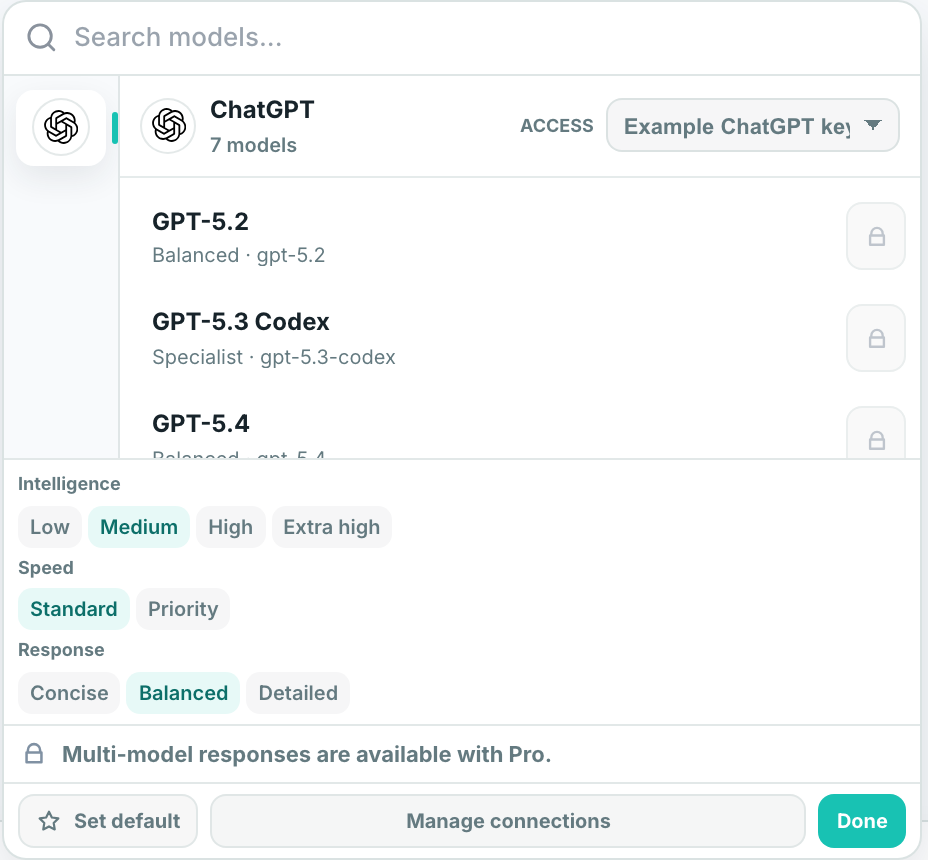
The model menu groups models by AI service. Choose ChatGPT, Claude, Google, Grok, DeepSeek, or OpenRouter first, then use Access to choose the connected API key or session for that service before selecting a model.
Use search to narrow the model list. Save a favorite model config to make favorite #1 the starting setup for future new chats, and use Manage connections to jump back to connection settings.
When the Mac app has Codex auth available, ChatGPT API-key access and Codex auth stay together under ChatGPT; choose between them from Access.
Model controls appear only when Lerix forwards that setting to the selected AI service path. Intelligence controls supported reasoning, thinking, or effort settings for ChatGPT, Claude, Gemini, Grok, and DeepSeek models. For DeepSeek V4, None disables thinking; Low, High, and Max enable the corresponding DeepSeek reasoning effort. Speed appears for supported ChatGPT/OpenAI service tiers. Response appears for supported OpenAI text verbosity controls.
Use the star beside a connected model to save it as a favorite model config. Favorites keep the model, access path, and supported model controls together.
Model favorites
Save up to 9 favorite model configs from the model menu. A favorite stores the selected model, access path, and supported controls such as Intelligence, Speed, and Response.
The Favorites panel lets you select, edit, reorder, or remove saved configs. When the active config is a favorite, the model menu opens on Favorites and shows supported controls such as Intelligence, Speed, and Response there; press Done to save the updated config back to that favorite position. You can still switch to the provider tab to change the model or access path before pressing Done.
The first favorite is the model config new chats use. Hold the configured favorite shortcut and press 1-9 to switch without opening the menu. The default shortcut prefix is Command + L on Mac and Ctrl + L on Windows or Linux.
Change the shortcut prefix in Settings > Preferences under Favorite shortcut.
Saved Agents
Pro accounts can save Agents from the model menu. An Agent keeps a name, exact model config, personality prompt, and optional files together so a chat can start with that setup in one selection.
Agent files use the same supported file types as composer attachments. Lerix adds the Agent personality and files as private send-time context; the Agent prompt is not written as a visible chat message.
You can star an Agent as a favorite. Agent favorites keep the saved Agent profile together with its model config, so shortcut switching or choosing the favorite preserves the Agent name, personality, files, model, and access path.
Agent memory is an optional Pro feature in testing with a daily limit. In the Agent editor, enable Agent memory, then choose whether to Use memory by default in agent chats. Both start off. The composer’s Memory switch controls recall and saving for that chat. Each Agent has separate memory in your account; Temporary Chat never uses it.
Memory uses a third-party service and is not end-to-end encrypted. Read what Agent memory sends and how to remove it before enabling it.
New chat defaults
When a model is connected, new chats open directly on the composer so you can start writing without first selecting an existing thread. If favorite #1 is usable, it supplies the model, access path, and model controls for that new chat; otherwise Lerix uses the first connected model it can use.
Use Settings > Preferences > New chat default to choose whether new chats start with This device or Encrypted sync. Encrypted sync can be the default only when the signed-in account has encrypted chat sync available.
You can still change the storage mode on an empty chat from the composer before sending the first message.
Quick Composer
The Mac app includes Quick Composer for starting a prompt from a compact always-on-top composer window. Choose File > Quick Composer, or press Command + Shift + L on Mac.
Quick Composer uses the current chat defaults and opens the submitted prompt in a normal Lerix app window. It is designed for fast capture; use the main chat window when you need the full model menu or Settings before sending.
Multi-model responses
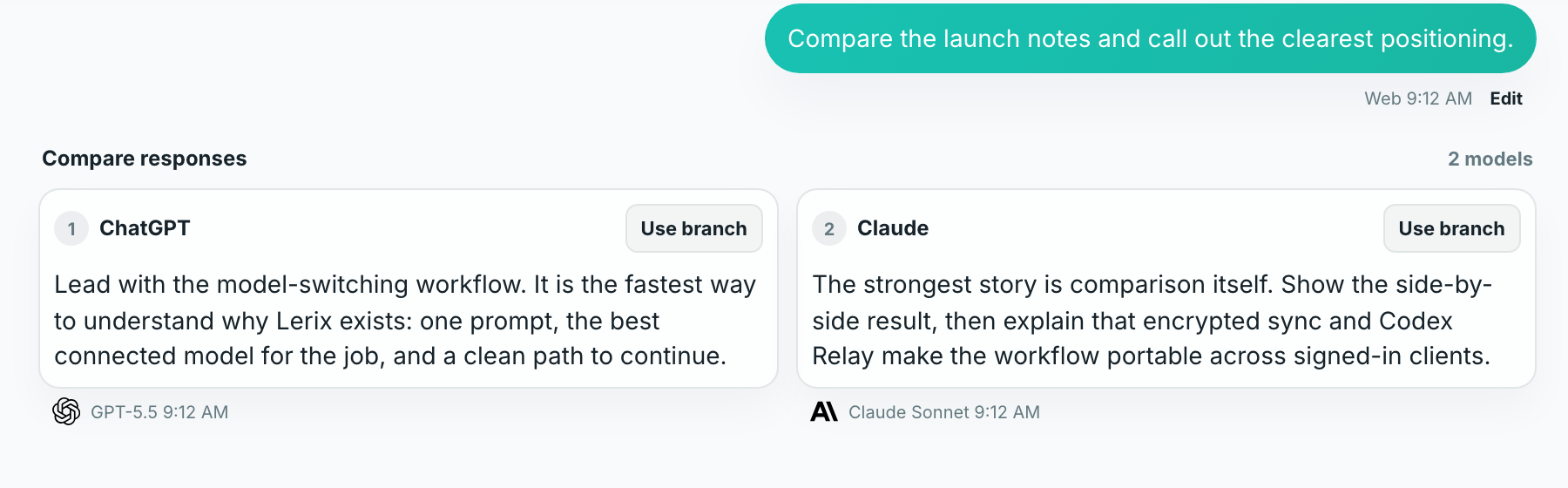
Pro accounts can add two or more connected model configurations from the model menu and send one prompt to all selected models. A single selected comparison target stays editable, but sending remains a normal one-model message until at least two targets are selected.
Finished comparison responses stay grouped together. On desktop and tablet they appear side by side; on phone screens they become a horizontal swipe group with adjacent responses visible. You can choose a response branch to continue future messages from that model, or leave the group unchosen to continue the comparison in parallel.
Usage and cost tracking
Turn Usage and cost tracking on or off in Settings > Preferences. When it is on, Lerix stores provider-reported token usage and estimated API-key costs with assistant messages, and shows cumulative chat estimates in response and sidebar details.
Cost figures are estimates based on the selected model and reported usage. They can exclude separate provider tool, search, storage, and long-context charges; your AI service's own billing remains authoritative.
For DeepSeek V4, estimates use provider-reported usage and the rate that applied when the response completed. They remain estimates; the DeepSeek billing page is authoritative.
Codex auth and relay
In the Mac app, Lerix can use supported local Codex auth as a ChatGPT access path without requiring an OpenAI API key for that route. The access picker keeps ChatGPT API keys and Codex auth together under ChatGPT, so the model menu stays organized by AI service instead of by billing system.
Codex Relay is a Pro feature that lets another signed-in Lerix client use an open desktop's supported Codex access path on the same account. The desktop remains the relay host.
Encrypted account sync
Lerix is local-first. Signed-out use stays local to this device. Signed-in account data is encrypted on the device before sync, and Lerix stores encrypted data plus required sync metadata rather than the keys needed to read it.
Free accounts include encrypted API-key sync. Pro includes encrypted workspace sync for chats, files, images, and workspace data, with the storage and attachment limits listed in accounts and plans.
Web browsing and sources
Web browsing is available on eligible text-generation paths. API-key connections start with browsing off to avoid unrequested tool usage, while Codex auth starts with browsing on. Use the browsing icon in the composer to change it for the next message in one click.
Each AI service decides whether to use the enabled browsing tool. When browsing happens, Lerix keeps compact activity and visible citations with the assistant message instead of storing raw tool payloads, hidden trace data, search queries, or retrieved page text.
File and image context
Use Attach files from the actions menu when the selected model path supports sending file or image context. Attachments saved into normal chat history follow the storage mode for that chat. Pro accounts can sync attachments up to 25 MB each.
Image generation
Image generation is available only when Lerix has a verified image path for the selected AI service and model.
Temporary Chat
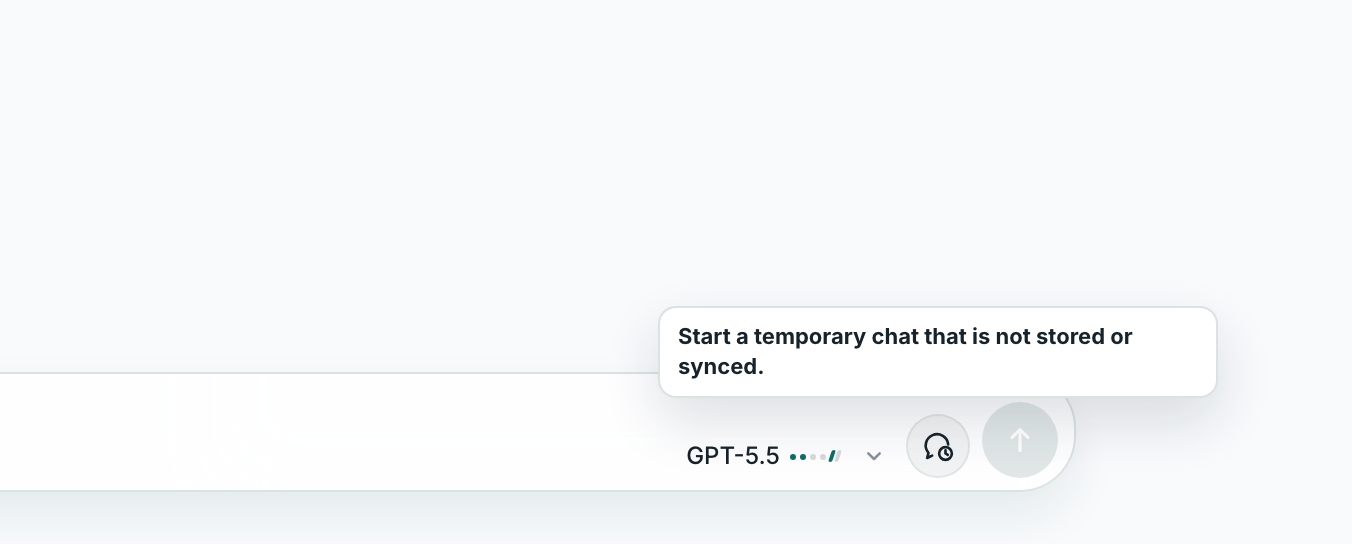
Temporary Chat is for conversations you do not want saved as normal chat history. Turn it on before sending the first message. After a temporary chat has messages, Lerix keeps it clearly labeled.
Mobile web app
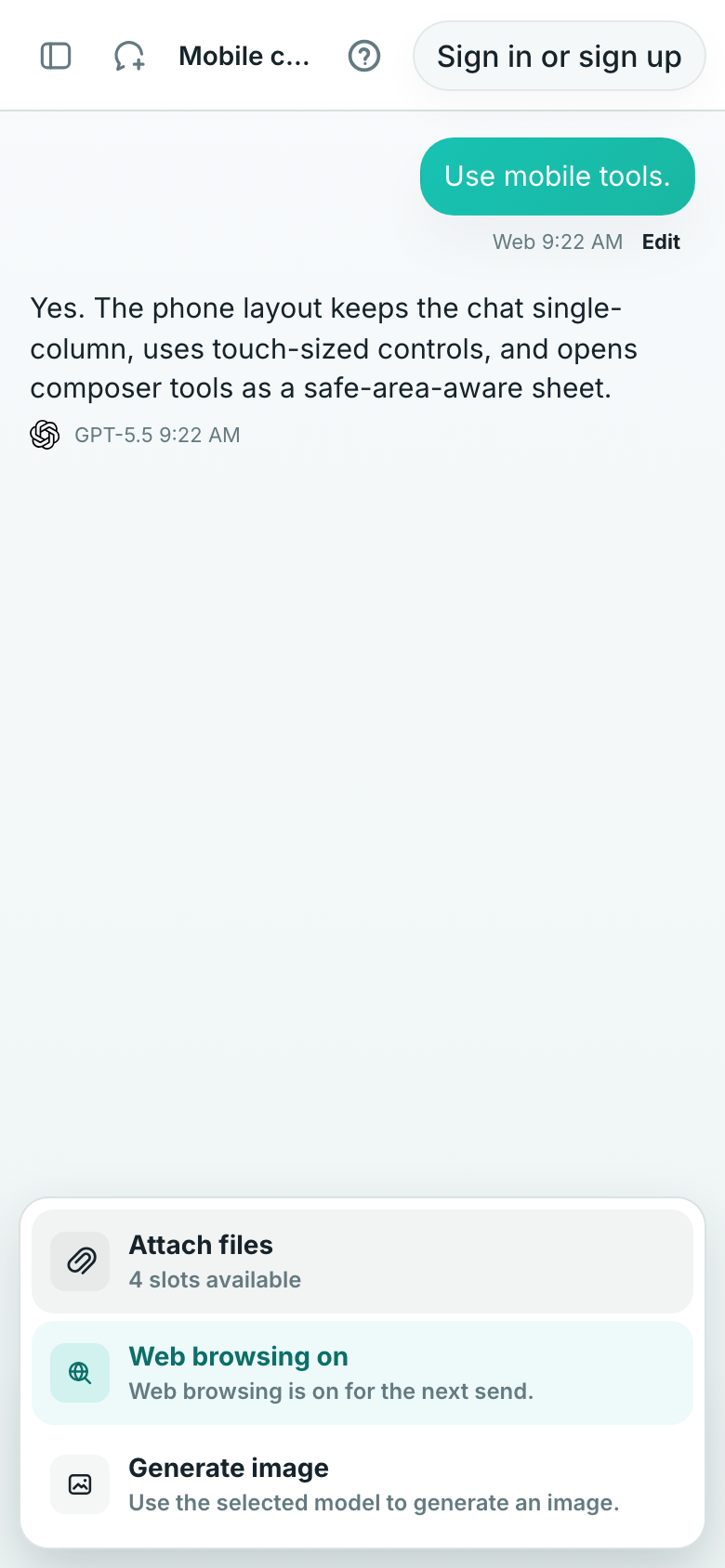
On phone-sized web screens, Lerix keeps the chat surface single-column and touch-first. The topbar and composer controls use larger tap targets, model and action menus open as safe-area-aware sheets, and Settings uses compact section tabs instead of the desktop sidebar flow.
FAQ
Can I use Lerix without an account?
Yes. You can add an API key and use Lerix locally on one device with local-only storage. Sign in when you want encrypted account storage, API-key sync, or Pro features such as saved Agents and multi-model responses.
Which feature reference items require Pro?
Pro includes saved Agents, multi-model responses, encrypted workspace sync for chats, files, images, and workspace data, larger encrypted storage, synced attachment support, and Codex Relay where supported. Free accounts include encrypted API-key sync.
Does Lerix replace my AI service subscription or API billing?
No. API-key chats still use the AI service account behind that key, and Codex auth in the Mac app is a separate supported access path from an OpenAI API key.