
Codex auth + Relay
Use your Mac’s Codex access inside Lerix
Codex auth gives the Lerix Mac app a supported ChatGPT access path without an OpenAI API key for that route. Codex Relay lets another signed-in Lerix client use the same open Mac as its host when the account and plan requirements are met.
- Use supported local Codex auth in the Lerix Mac app
- Keep Codex auth separate from OpenAI API-key access
- Relay from the open Mac to same-account Lerix clients with Pro
Direct answer
Codex auth and OpenAI API keys are different access paths
Codex auth uses the ChatGPT-signed-in Codex session on a Mac. An OpenAI API key uses the separate OpenAI API account attached to that key. Lerix keeps both under ChatGPT in the model menu, then lets you choose the access path explicitly.
| Access path | What you connect | Where it runs | Lerix requirement |
|---|---|---|---|
| OpenAI API key | A key from the OpenAI API platform | Direct API-key path where supported | Works locally without a Lerix account; encrypted key sync needs a free or Pro account |
| Codex auth | A ChatGPT-signed-in Codex CLI session | The Lerix Mac app on that Mac | Mac app; no Lerix Pro plan required for local use on that Mac |
| Codex Relay | The Mac app's available Codex session | The open Mac remains the live host | Pro and the same signed-in Lerix account on both clients |
If a selected Codex session or Relay path is unavailable, Lerix should show that path as unavailable rather than silently substituting an API key.
Before you start
What Codex auth and Relay need
- For local Codex authA Mac with the Codex CLI installed, a ChatGPT-signed-in Codex session, and the Lerix Mac app.
- For RelayA Lerix Pro account, the same Lerix account signed in on both clients, at least one supported Codex model enabled, and Relay turned on.
- While using RelayThe Mac app must remain open and signed in because that Mac hosts the request.
codex login --with-api-key cannot supply Lerix Codex session auth or Relay. Use codex login and complete ChatGPT sign-in.
Setup
Connect the Mac first, then turn on Relay if you need it
- Sign in to Codex on the Mac.Run
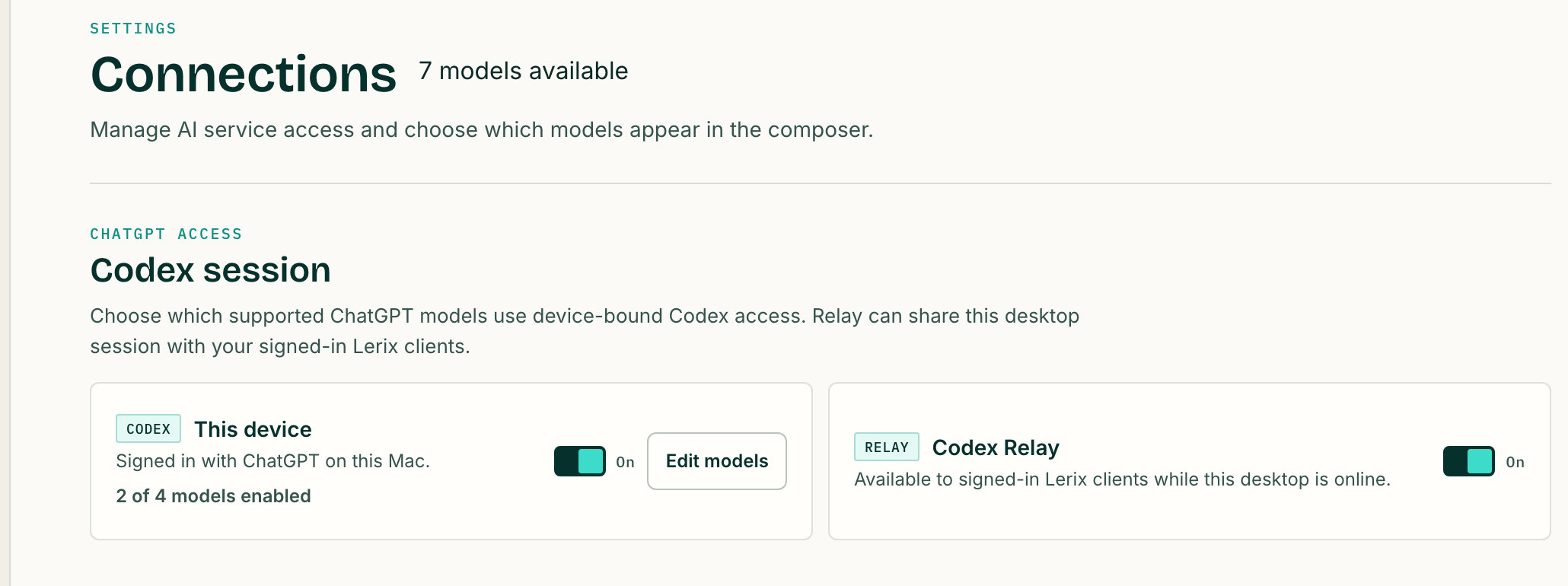
codex login, complete ChatGPT sign-in, then confirm withcodex login status. - Open the Lerix Mac app.Go to Settings > Connections and find Codex session auth.
- Enable supported models.Choose Edit models and keep the ChatGPT models you want available in the composer.
- Select Codex auth in chat.Open the model menu, choose ChatGPT, then pick the Codex session from Access.
- Optionally enable Relay.On Pro, turn on Codex Relay on the Mac and select the relayed access path from the other same-account Lerix client.
For the exact UI sequence and current troubleshooting notes, use the Codex auth and Relay setup guide.
Separate systems
ChatGPT, OpenAI API, and Lerix billing are not interchangeable
A ChatGPT subscription and OpenAI API billing are separate systems. Codex auth uses the supported ChatGPT-signed-in session path on the Mac; OpenAI API-key chat uses your API platform account. Lerix Pro is a third, separate subscription that enables Lerix features such as Codex Relay and encrypted workspace sync.
Choose the access path you intend before sending. Lerix keeps the selected source visible in the model control and response details so you can tell whether a message used an API key, local Codex auth, or Relay.
Quick checks
When Codex auth or Relay looks unavailable
- Run
codex login statuson the same Mac and sign in again with ChatGPT if needed. - Confirm you are using the Lerix Mac app, not only the web app, for local Codex auth.
- Check that at least one supported model is enabled under Codex session auth.
- For Relay, verify Pro status and the exact same Lerix account on both clients.
- Keep the Mac app open, signed in, and Relay enabled while the other client sends.
- If ChatGPT API keys also exist, verify the Access picker is set to the intended session or Relay path.
OpenAI's Codex CLI documentation covers current CLI installation and usage. Lerix-specific connection behavior is documented in the Lerix setup guide.
Frequently asked questions
Short answers to the details people usually need before choosing this workflow.
Can I use Codex auth in the Lerix web app without a Mac?
No. Local Codex auth is a Lerix Mac app feature. A Pro account can use Codex Relay from another Lerix client only while an eligible same-account Mac app is open and hosting the session.
Do I need an OpenAI API key for Lerix Codex auth?
No. Codex auth is a separate supported ChatGPT access path. If you want to use the OpenAI API-key path instead, connect an OpenAI API key separately.
Does Codex Relay require Lerix Pro?
Yes. Codex Relay is a Pro feature and requires the same Lerix account on the host Mac and the other client.
Does the Mac need to stay open for Relay?
Yes. The Lerix Mac app remains the live Relay host and must stay open and signed in while another client sends through that path.
Put Codex auth + Relay to work
Open Lerix, connect the access path you intend to use, and start with a small real task. Your AI-service account and usage billing remain separate from Lerix.